
ServePel - B2B Businesses and Services Finder
Web Application | Mobile Application (Android & ios)
By: www.whitepel.com
Thank you so much for visit this. If you want this platform with your brand name or having questions / doubts then feel free to reach us.
Email: info@whitepel.comWhatsapp : Chat Now
Telegram : Chat Now
Website Form : Contact Now
Live Demo: User / Businesses owner | Admin
Contact us for admin login credentials.
Introduction
ServePel is B2B Businesses and Services Finder. By using this platform, service providers can create a businesses, products, and services(all in one). Users can easily find & book their service as per their needs. Payments collected through Paypal and stripe
Admin Features
The admin can have the access to all the setting
Admin will do the access of the buyer/Service Provder where they newly registered to the service market place.
Admin Dashboard
Default page after successful login by admin. Following details are visible to admin.
- Total number of category & sub-category
- Total number of services
- Total number of users
- Total number of orders status history

Shop & Services
Category & Sub-Category & Sub Sub-Category
Admin has the option to add new category type here. Also, has an option to ‘Edit’ or ‘Delete’ already categorized here
Note: If you delete any category, Sub Category, Sub Sub-Category also will be deleted and Sub Category service lising also deleted
Category:

Sub-Category:

Sub Sub-Category:

Services
Admin can view all the services and they are able to activate or deactivate the services.

Offers
Admin can view all the services and they are able to activate or deactivate the services.

Coupons
Admin can view all the services and they are able to activate or deactivate the services.

Staffs
Admin has the option to view all Staffs list with Sub Sub Category. Also, has an option to ‘Edit’ or ‘Delete’

Shops
Admin has the option to view all Shops list. Also, has an option to ‘Edit’ or ‘Delete’

Users
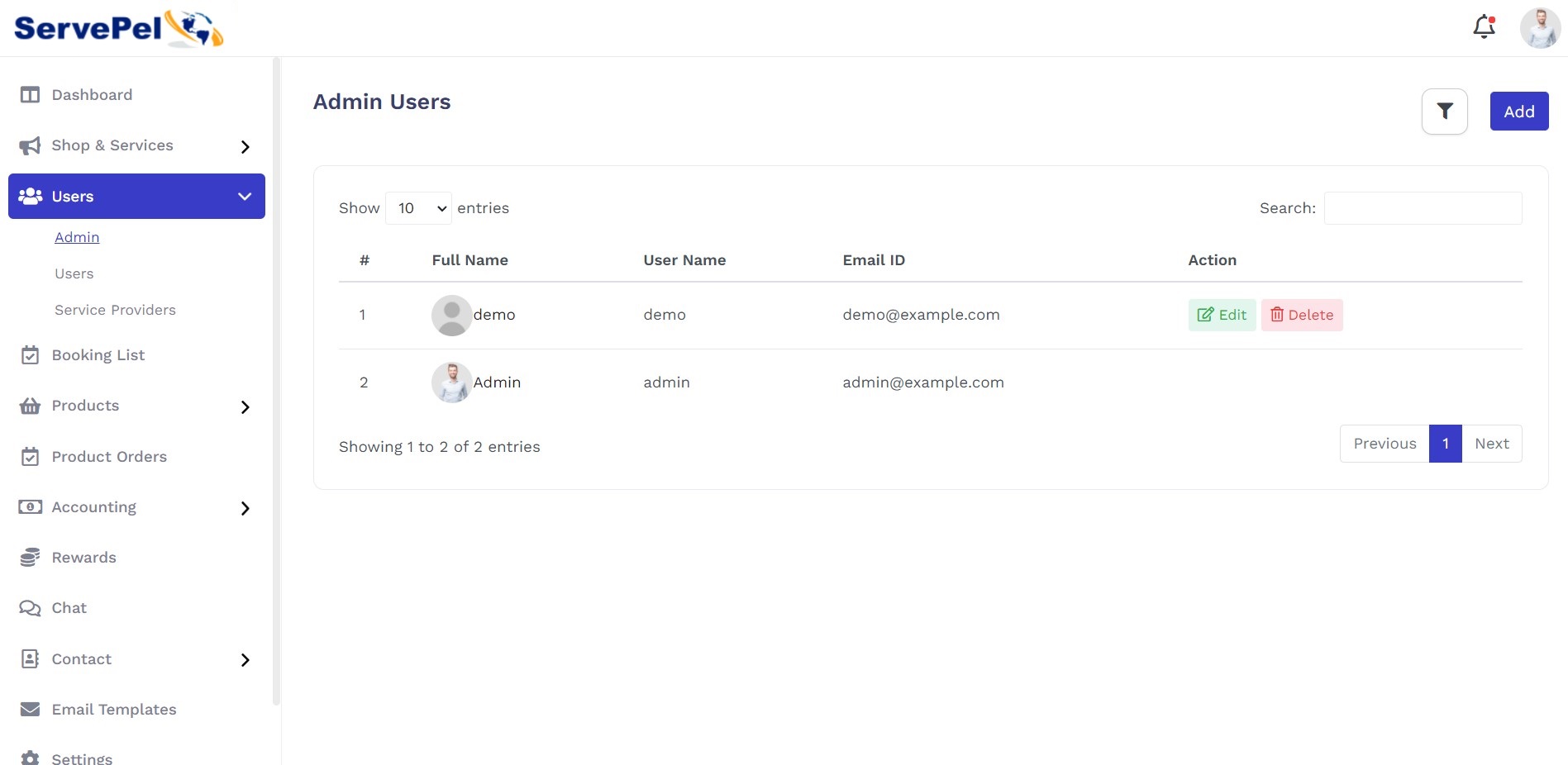
Admin Users
Admin has the option to add new subadmins. Also, has an option to ‘Edit’ or ‘Delete’
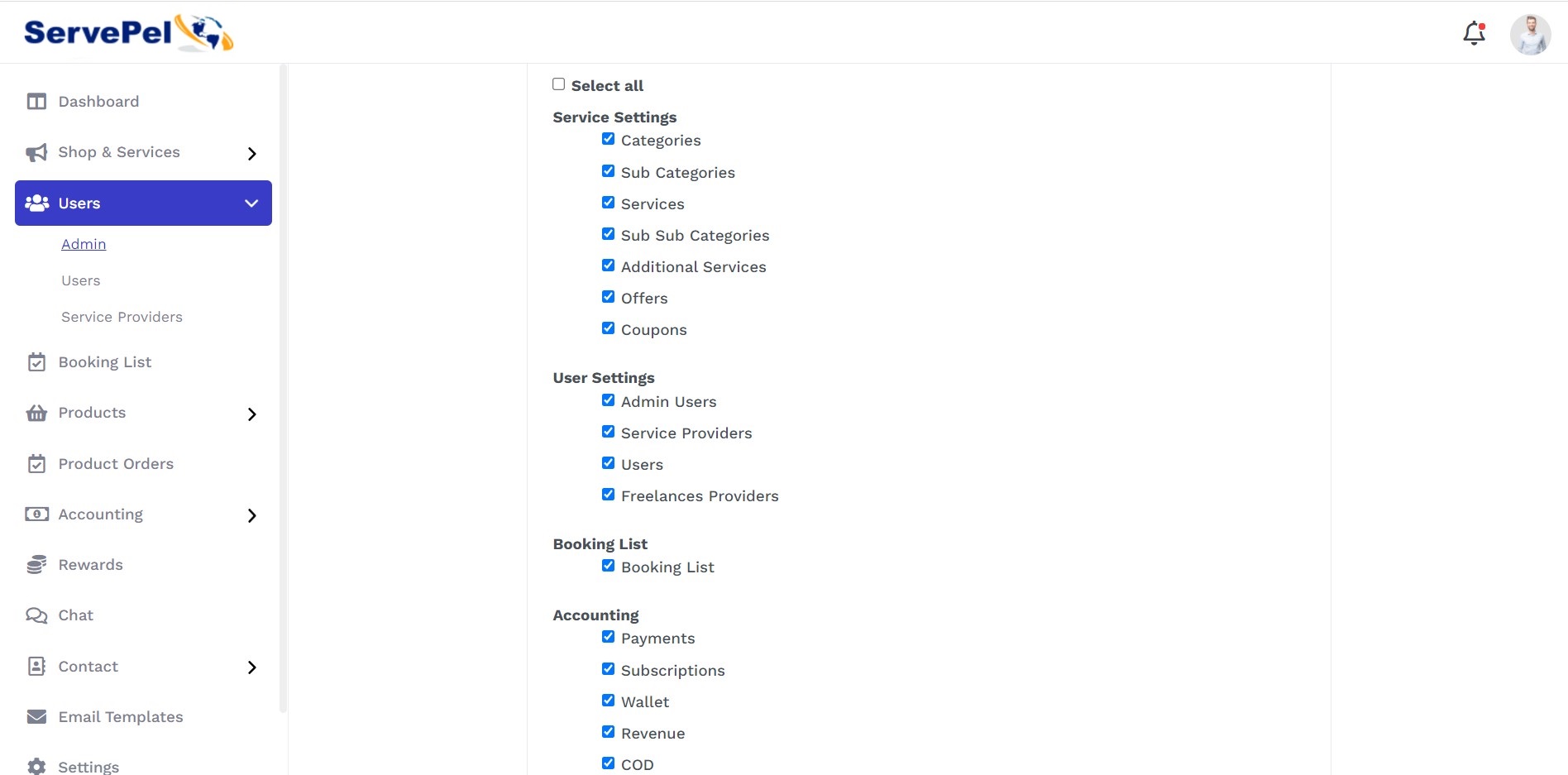
Admin has the option to set module access restrictions.
Users
Admin can view the entire customer list. Also admin has an option to active/inactive the Users. Also, has an option to ‘Edit’ or ‘Delete’

Service Providers
Admin has the option to view all service providers list with subscription plan. Also, has an option to ‘Edit’ or ‘Delete’

Booking List
Admin has the option to view the status of ‘Booking History’ list that mentions below,
- All booking - Admin can view total number of services booked on date-wise.
- Pending – Provider yet to confirm the service request from user.
- In-progress – Service provider accepted the service.
- Completed - Total number of service is completed.
- Rejected- Orders declined by service provider.
- Cancelled - Orders cancelled by provider.

Product Setting
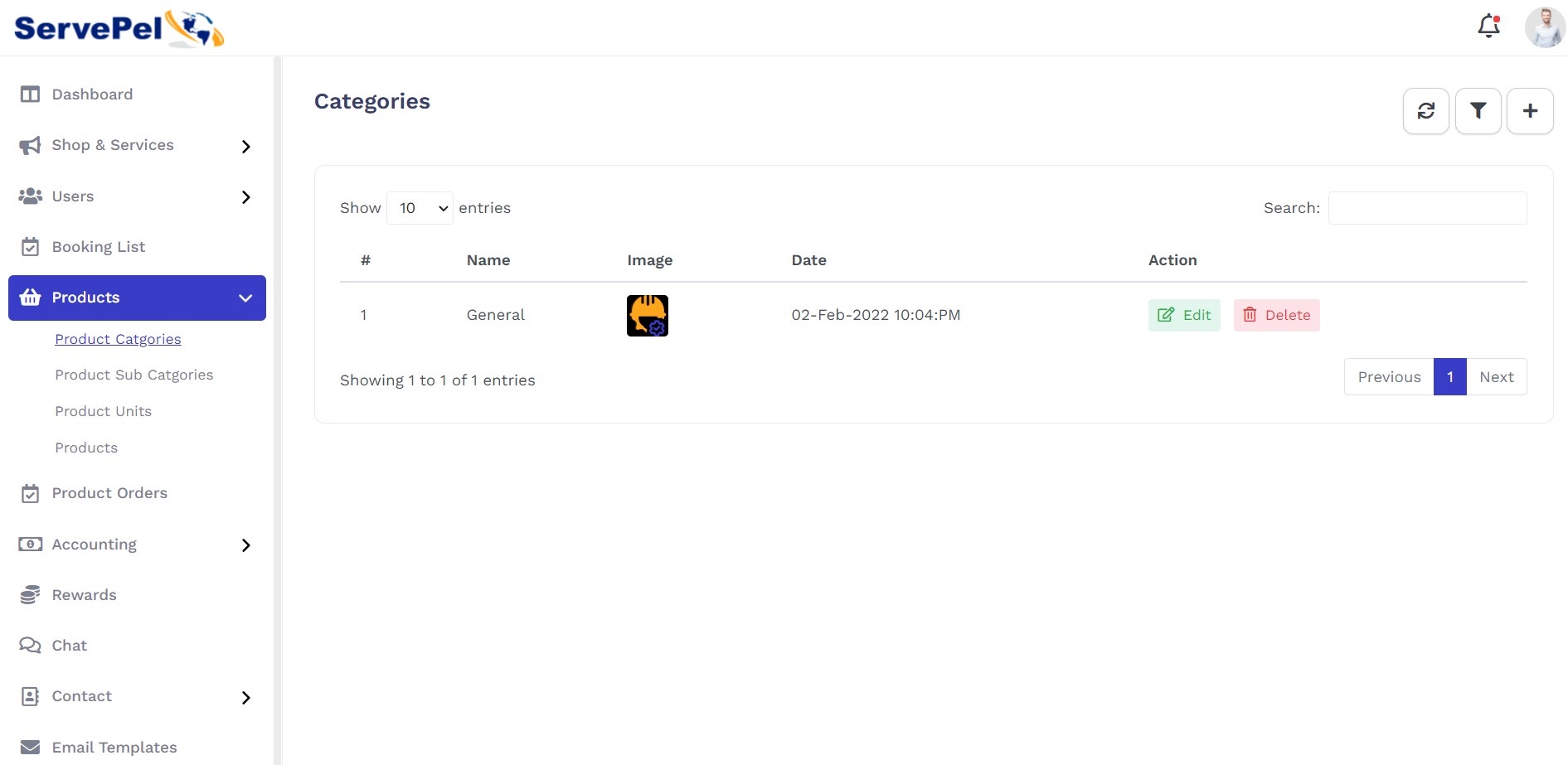
Product Categories
Here admin can view the Product Categories List, Also you can able to Add,Edit,Delete the Categories.
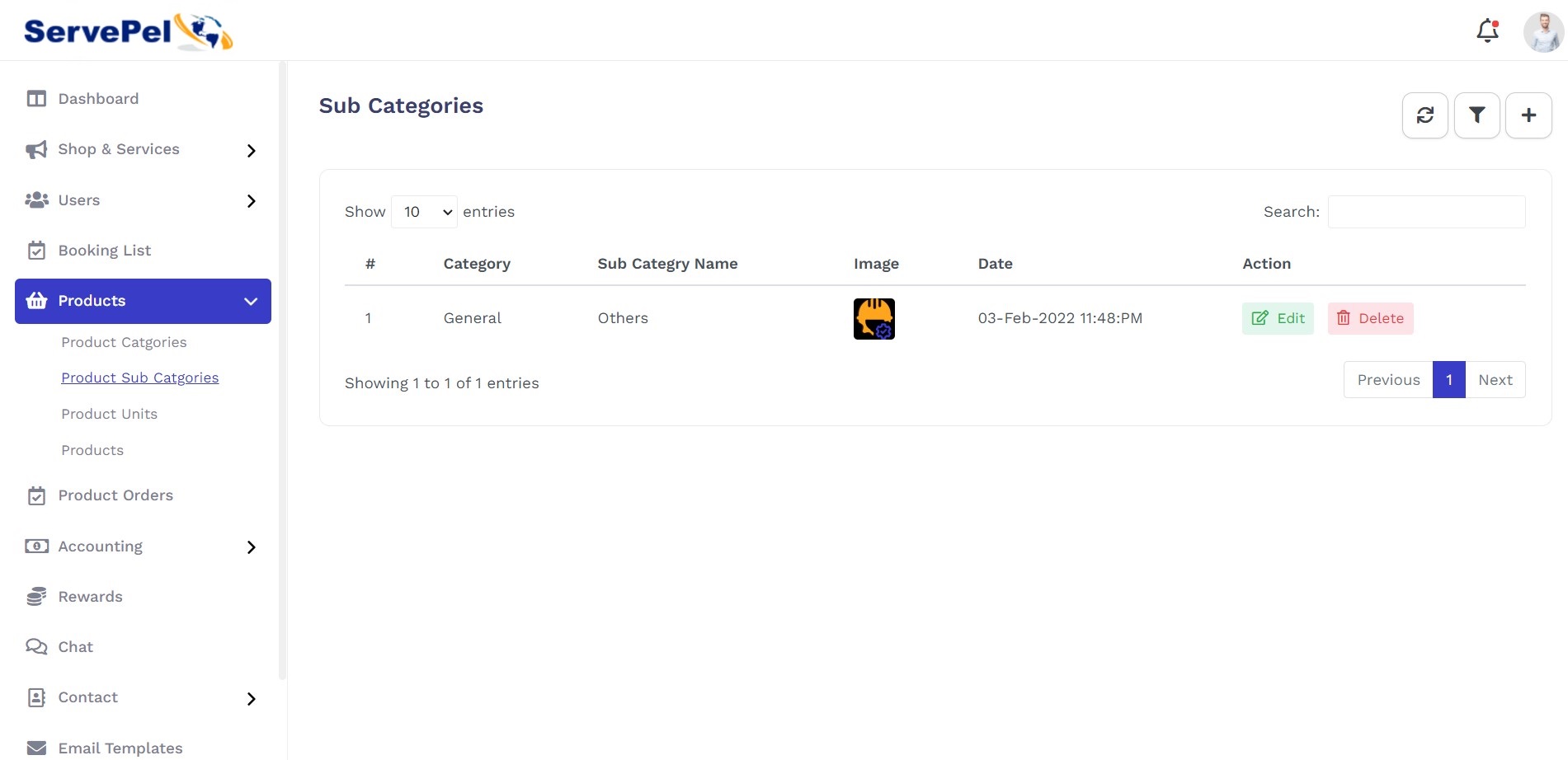
Product Sub Categories
Here admin can view the Product Sub Categories List, Also you can able to Add,Edit,Delete the Sub-Categories.
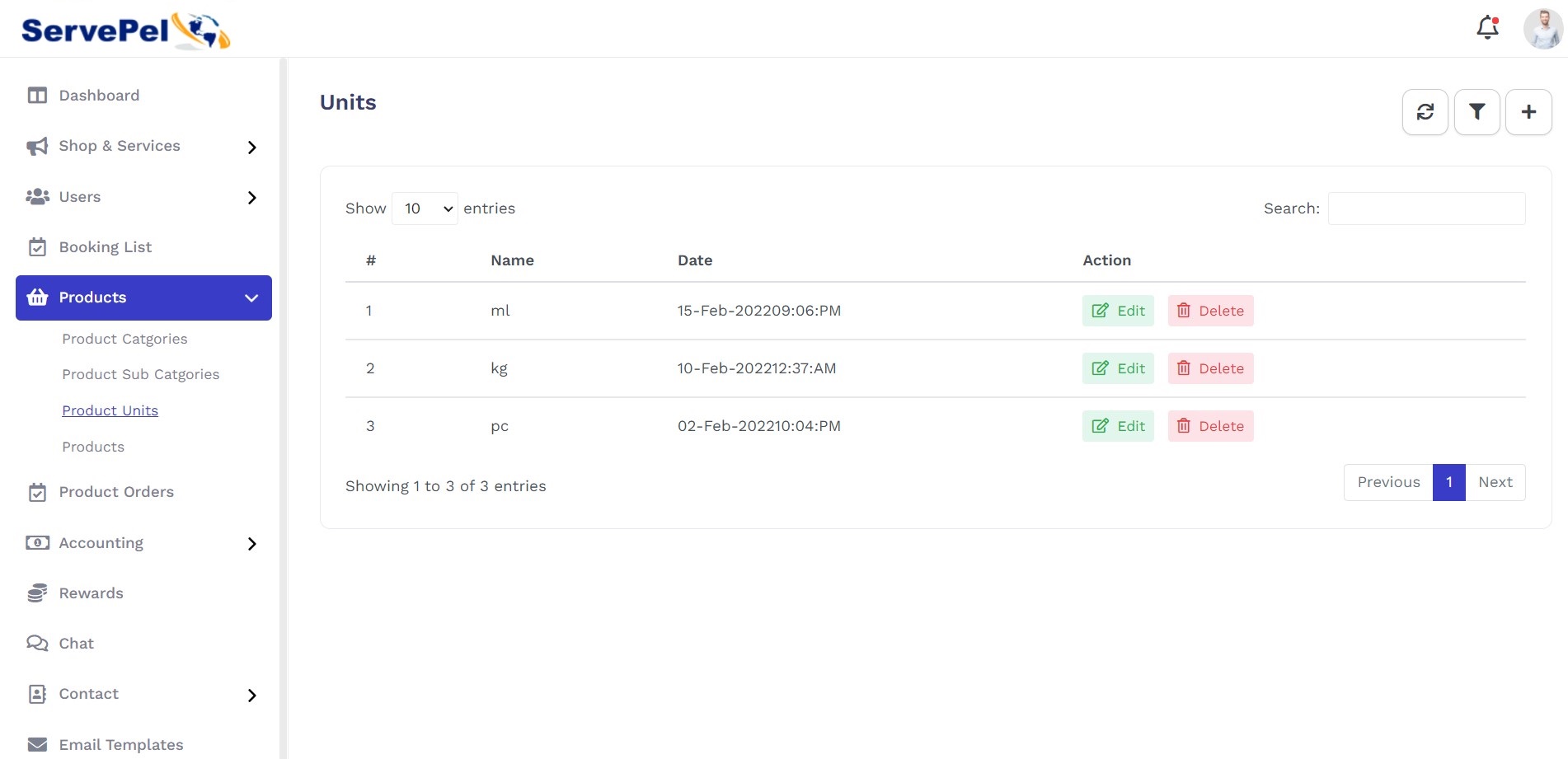
Product Units
Here admin can view the Product Units List, Also you can able to Add,Edit,Delete the Units.
Products
Here admin can view the Products List.

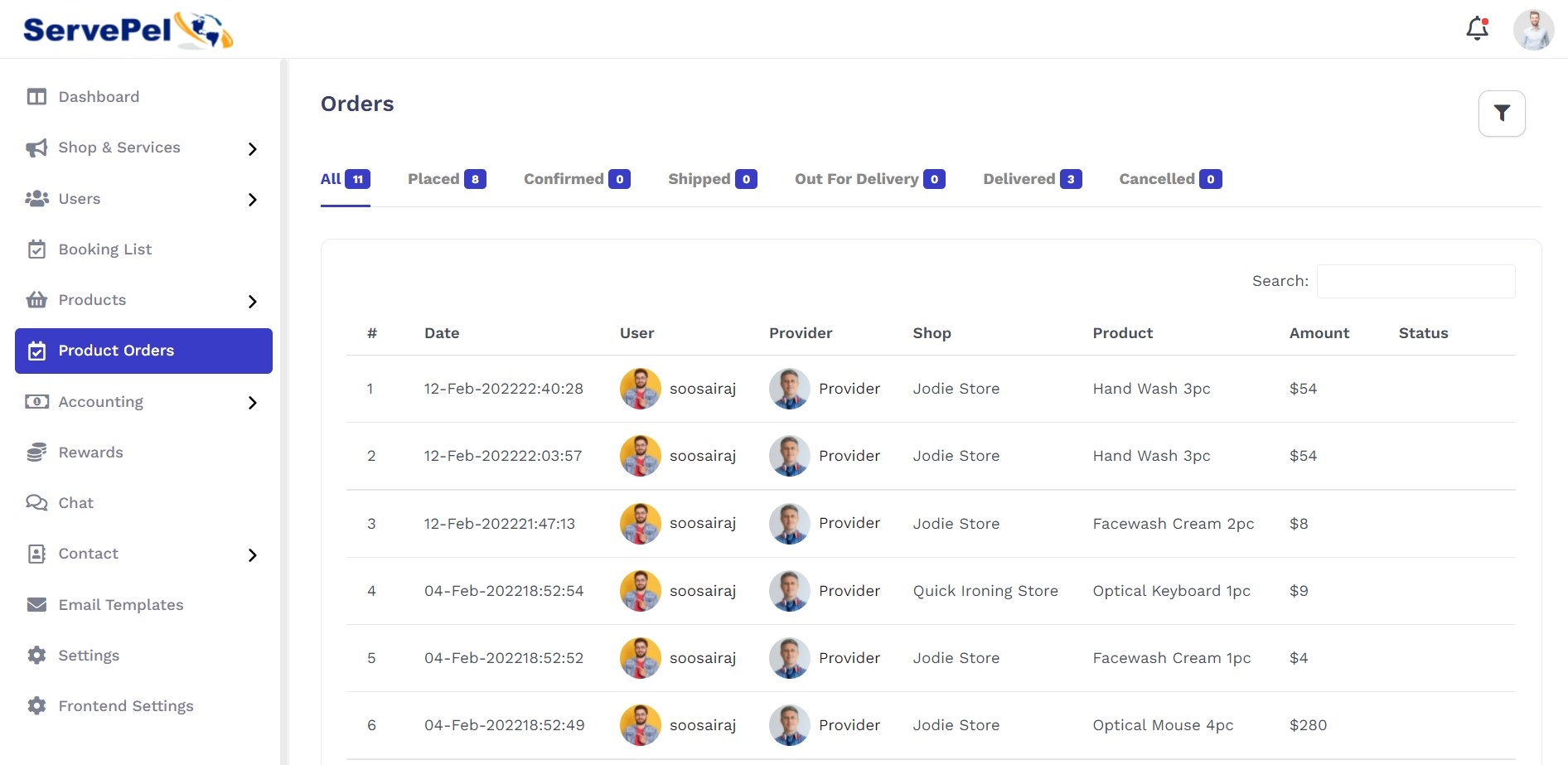
Product Order List
Admin has the option to view the status of Product Order History’ list that mentions below,
- All - Admin can view total number of Orders booked on date-wise.
- Placed – Provider yet to confirm the service request from user.
- Confirmed – Service provider accepted the service.
- Shipped - order Shipped details.
- Out For Delivers- Orders Out For Delivered by provider.
- Delivered - Orders Delivered by provider.
- Cancelled - Orders cancelled by provider.
Accounting
Subscriptions
Admin has the option to add new subscription type here. Also, has an option to ‘Edit’ or ‘Delete’ already subscription here.

Admin has the option to view Subscriber Details list also.

Payments
Admin has the option to view the status of ‘Booking History’ list.

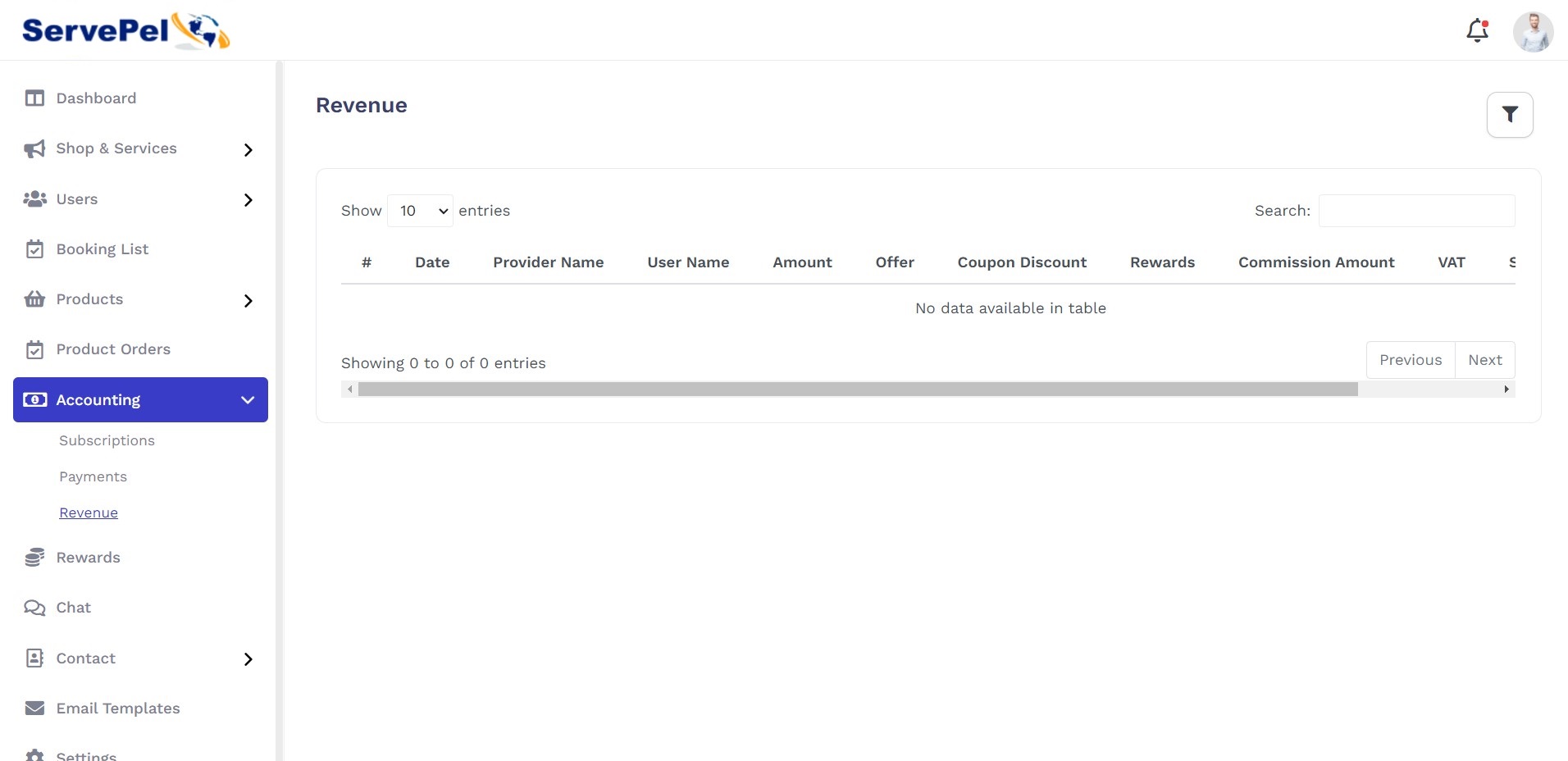
Revenue
Here admin can view the earned Commission amount
Reward System
Admin can view all the Reward and they Action.

Chat List
Admin can view all the Chat List Both Provider&User.

Contact
Contact Detail
If the user has entered any details via contact form Admin can receive and view the message details here.

Contact Reply
If the user has entered any details via contact form Admin can reply to that particular message and it will be send through mail to users.

Rating Type
Admin can add/edit the rating type like Good, Excellent and normal.

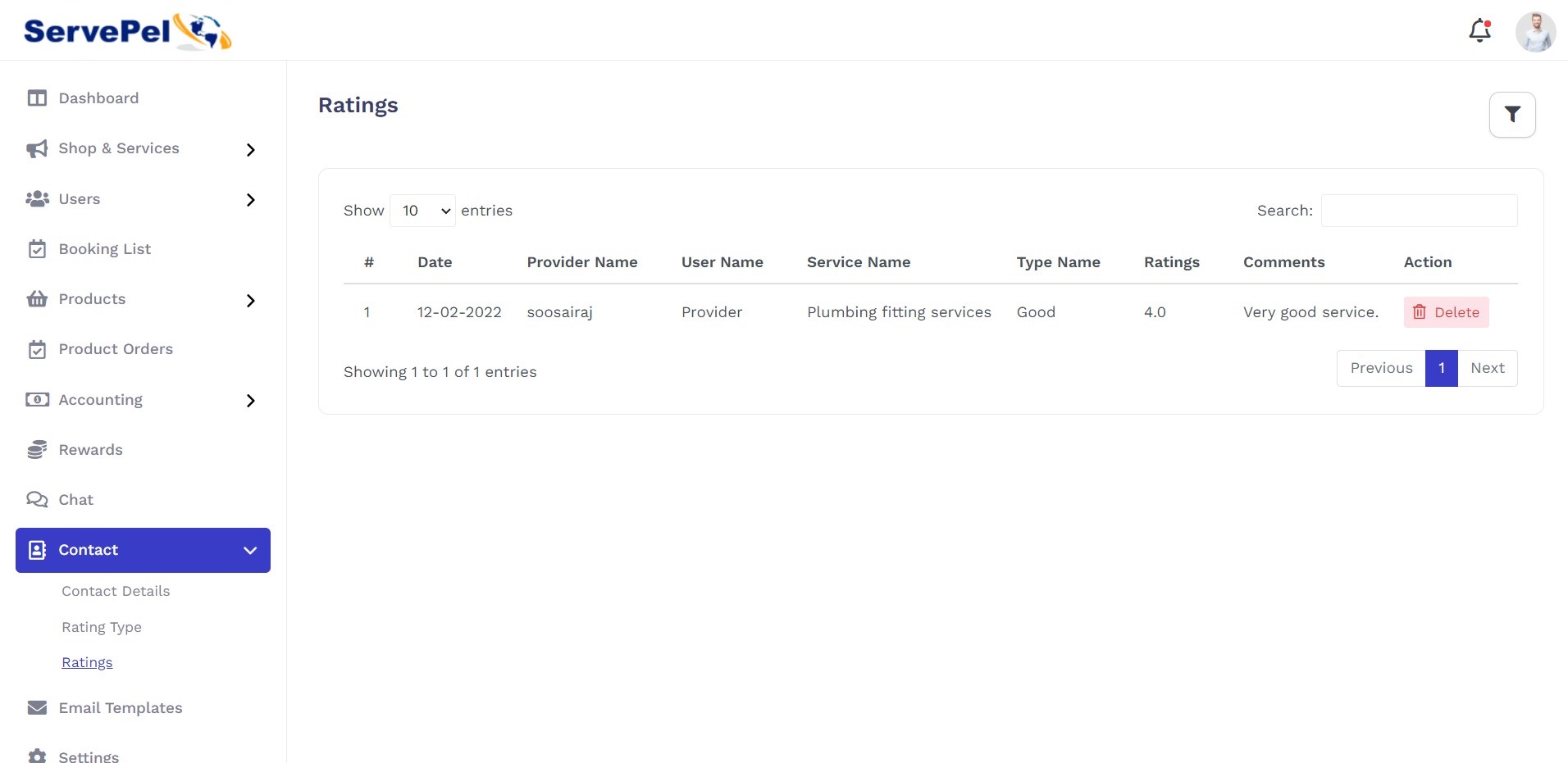
Ratings
Here admin can view the entire customer’s reviews, Also you can able to delete the reviews
Email Template
Admin can set an email template format for user registration,booking confirmation,booking status. and also has an edit template format.

1.Frontend Settings
Header Settings
To enable state language currency, Sticky header options.
Back-end View:

Front-end View:

To Disable state language currency, Sticky header options.
Back-end View:

Front-end View:

Header Menu
Here we can update the header menus text and links. If this menu option disabled the default header menus will be displayed. If you delete the all menus, if you want again you have to click the Reset option to retrieve the old datas
To enable Header Menu ON/OFF Button.
Back-end View:

Front-end View:

To Disable Header Menu ON/OFF Button.
Back-end View:

Front-end View:

2.Footer Settings
Categories Widget
To update the Home page Footer menu categories list opinion. We can update the count of categories and categories view.
Back-end View:

Front-end View:

Links Widget
To update the Home page Footer menus Link option title, links and link name. If you don’t want this menu you can disable the menu.
Back-end View:

Front-end View:

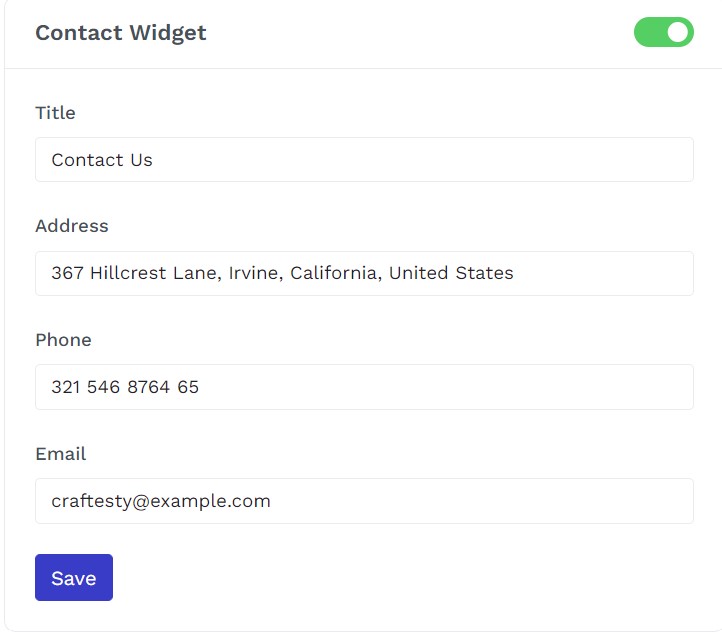
Contact Widget
To update your contact details. If you don’t want this menu you can disable the menu.
Back-end View:
Front-end View:

Social Widget
To Update social links and to enable or disable option.
Back-end View:

Front-end View:

Copyright Widget
To update the copyright content and links. You have to add and delete the links and enable or disable the copyright content option. You can add 3 links only.
Back-end View:

Front-end View:

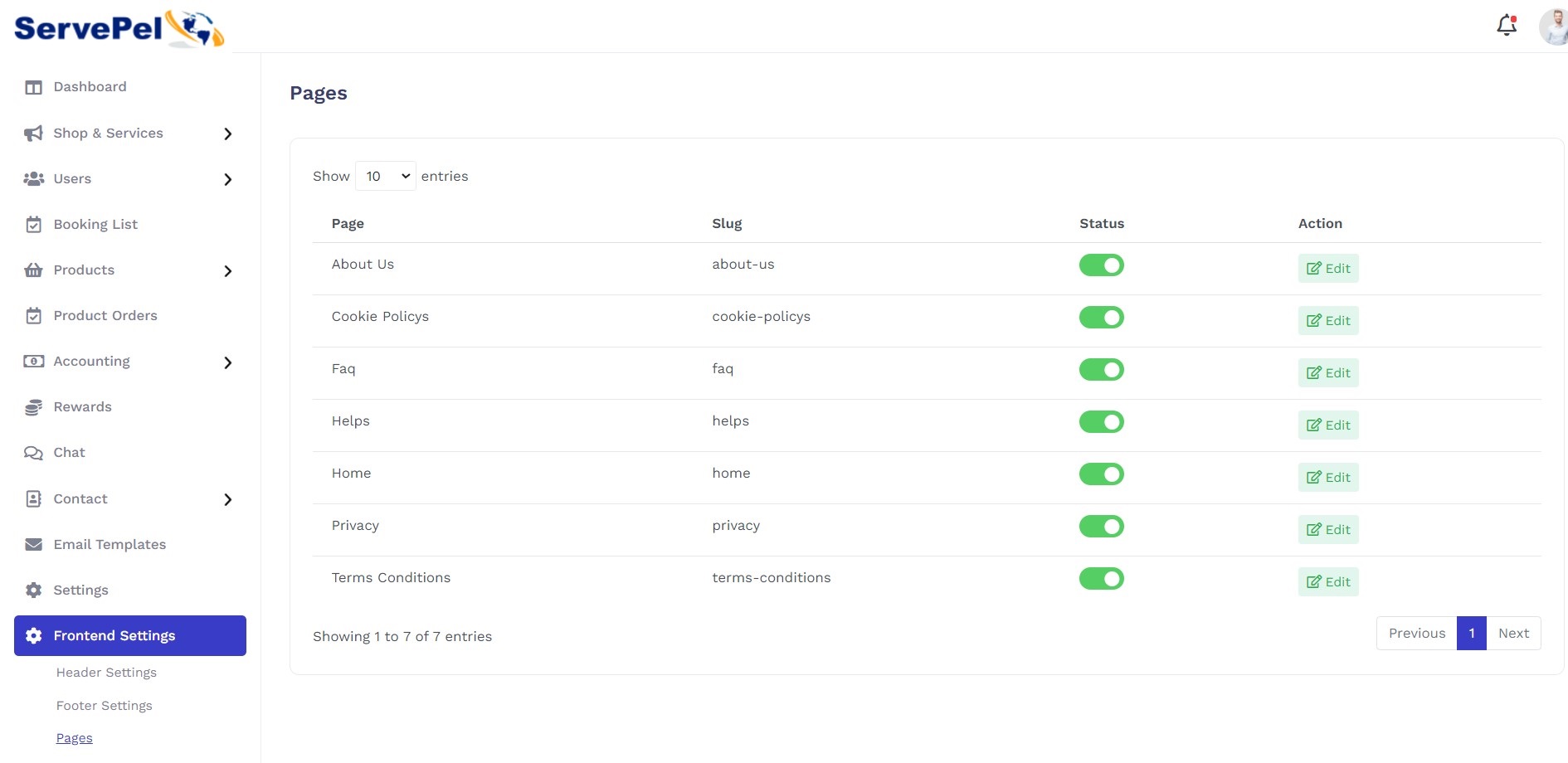
3.Pages
We can update the page title, slug and contents.
About Us
To update the title and content. The slug was created based on Title.
Back-end View:

Front-end View:

Cookie Policy
To update the title and content. The slug was created based on Title.
Back-end View:

Front-end View:

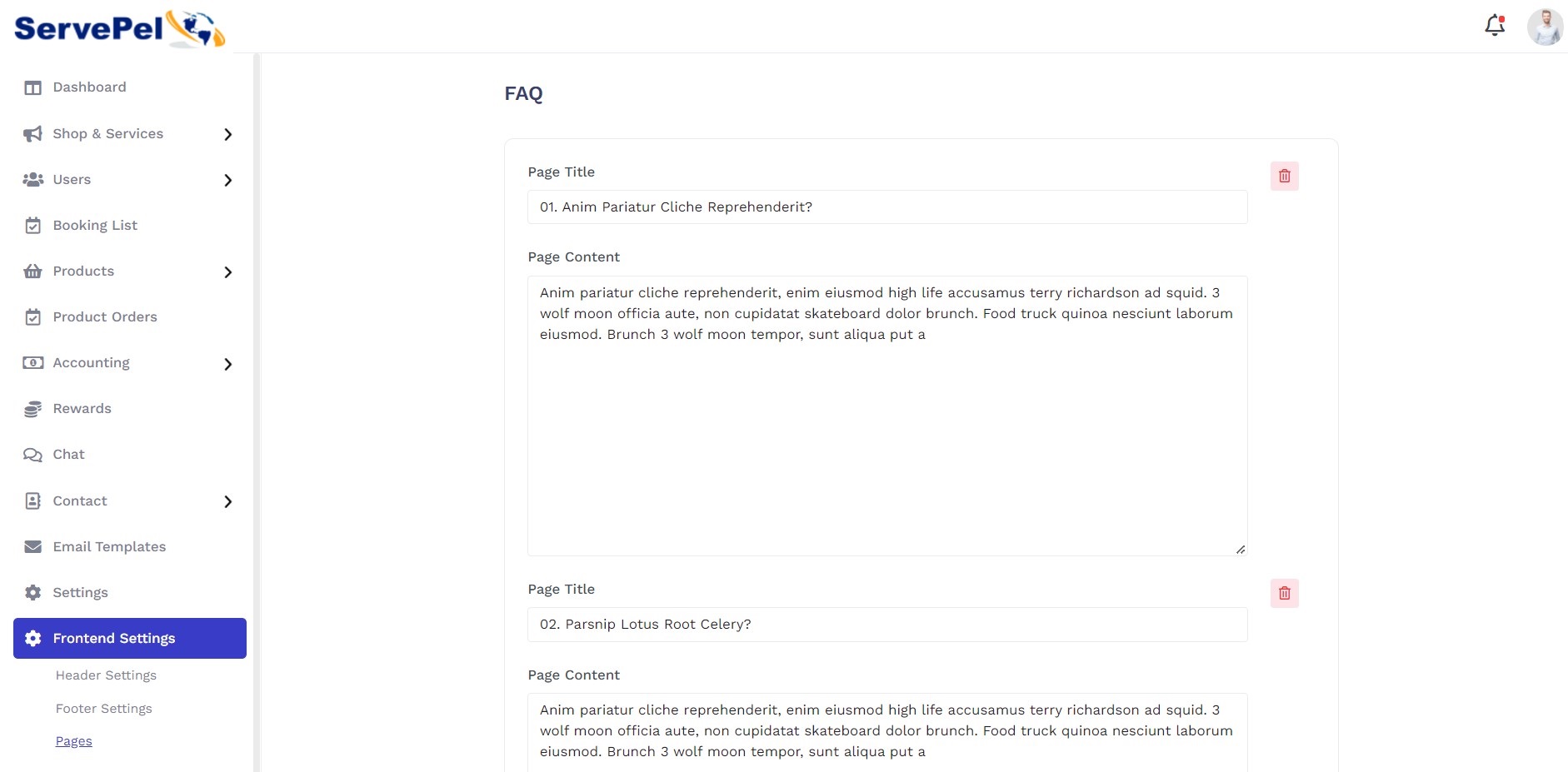
FAQ
Create and Delete the Faq details.
Back-end View:
Front-end View:

Help
To update the title and content. The slug was created based on Title.
Back-end View:

Front-end View:

Privacy Policy
To update the title and content. The slug was created based on Title.
Back-end View:

Front-end View:

Terms Of Services
To update the title and content. The slug was created based on Title.
Back-end View:

Front-end View:

Home Page
In this page it contains five divisions of Home Page 1.Banner Settings, 2.Featured Categories, 3.Popular Services, 4.How It Works
1.Banner Settings
To update the banner content, popular and main search enable/disable option.
Back-end View:

Front-end View:

2.Featured Categories
To update and display title,content and disable/enable options.
Back-end View:

Front-end View:

3.Popular Services
To update and display title,content and disable/enable options.
Back-end View:

Front-end View:

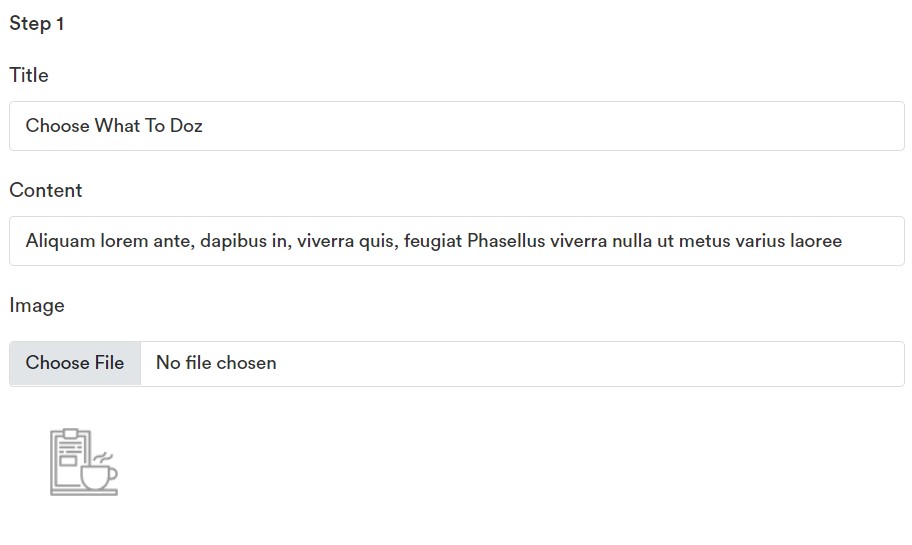
4.How It Works
To update the Title, Content and enable/disable option.
Back-end View:



Front-end View:

Settings
Here admin has an option to set General information
General settings:
It contains Three page settings 1.Website Basic Details,2.Image Settings,3.Placeholder Image Settings.
1.Website Basic Details
To update the Site name, Contact details, Mobile number, Currency, Language and Radius.

2.Image Settings
To update the Site logo, Favicon and Icon images.

3.Placeholder Image Settings
If the service and profile images are empty the place holder images will be displayed. It will be displayed on Frontend.

System Settings
In this setting to be used on to update the Push notification Firebase key and Google map api keys.

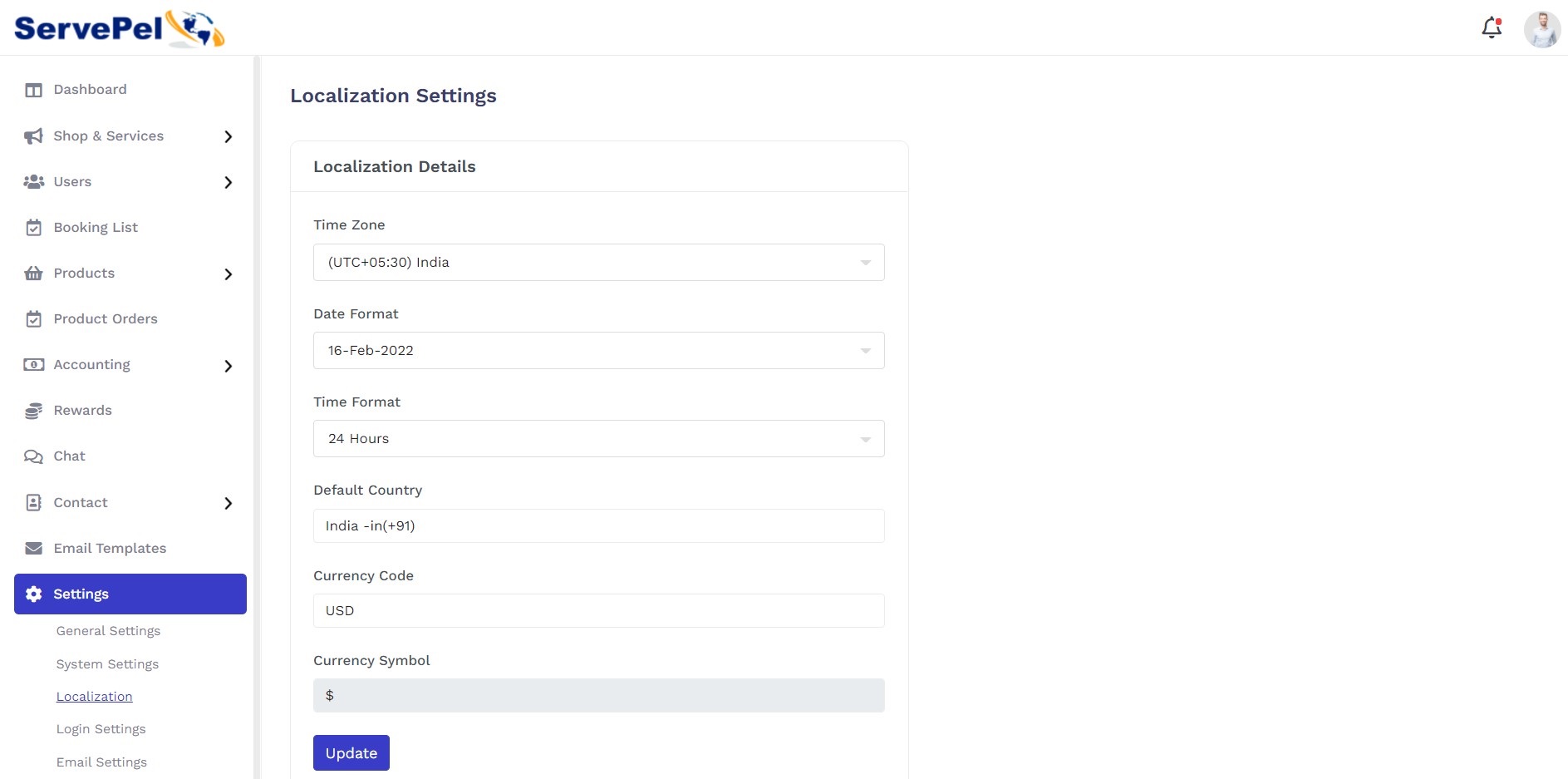
Localization Settings
To update the Timezone, Date format, Time format, Default Country code, Currency code and Currency symbol.
Login Settings
To update the login type and otp settings.

Email Settings
To update the SMTP or PHP Mail details(Email, Password, Port and etc..).


Payment Settings
To update the payment details. Here we have implemented 5 payment gateway(Stripe,Paypal,Paysolution,Razorpay and Paystack) and cod options.

SEO Settings
Here admin can set title and description and keywords for search engine optimization

Front-end View:

SMS Settings
To update the sms configuration details. Here we have used 3 SMS gateways(Nexmo, Twilio and 2Factor) and default otp option.

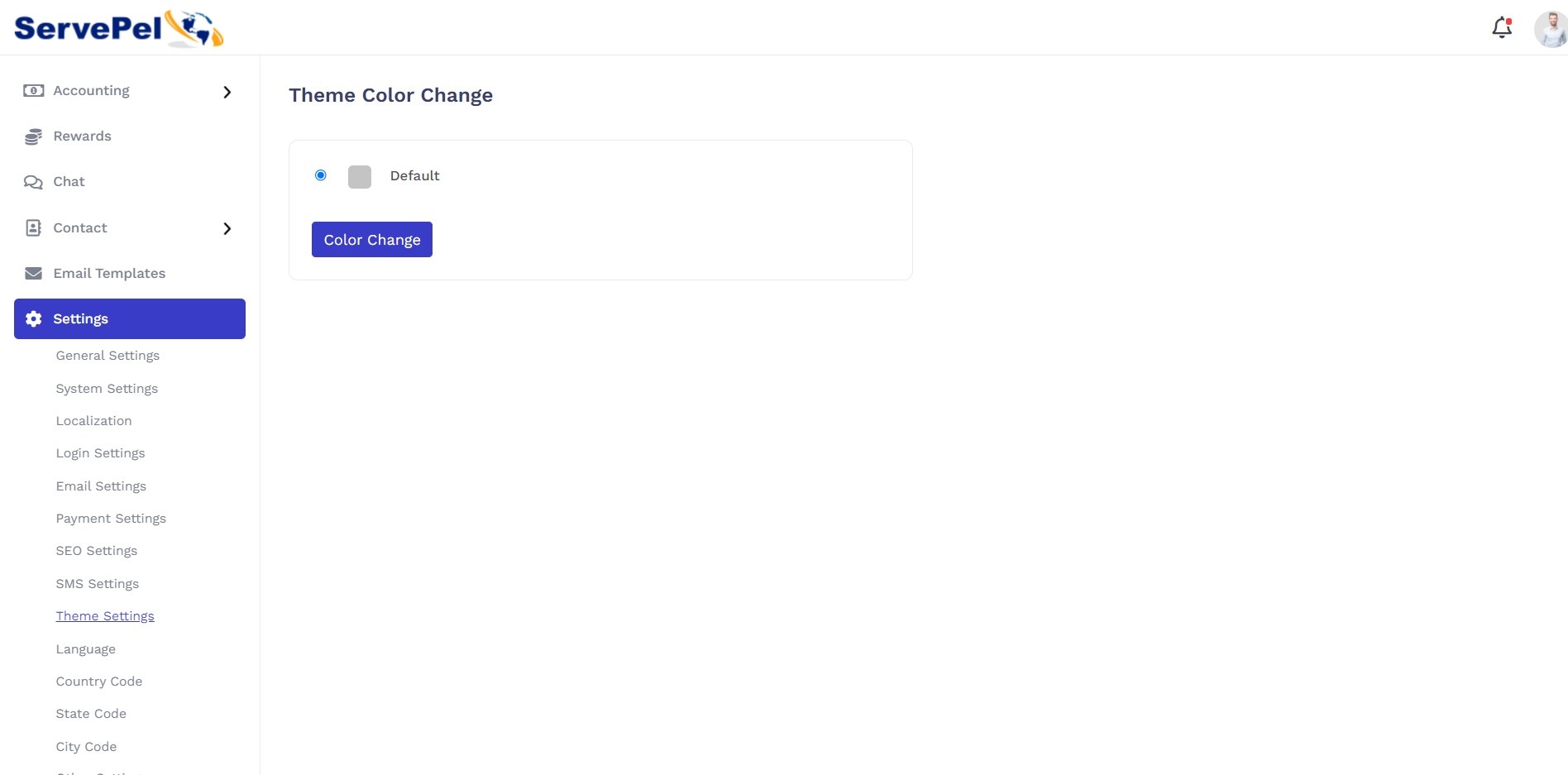
Theme Color Change
By using the option admin can change the theme color at any time.
Languages
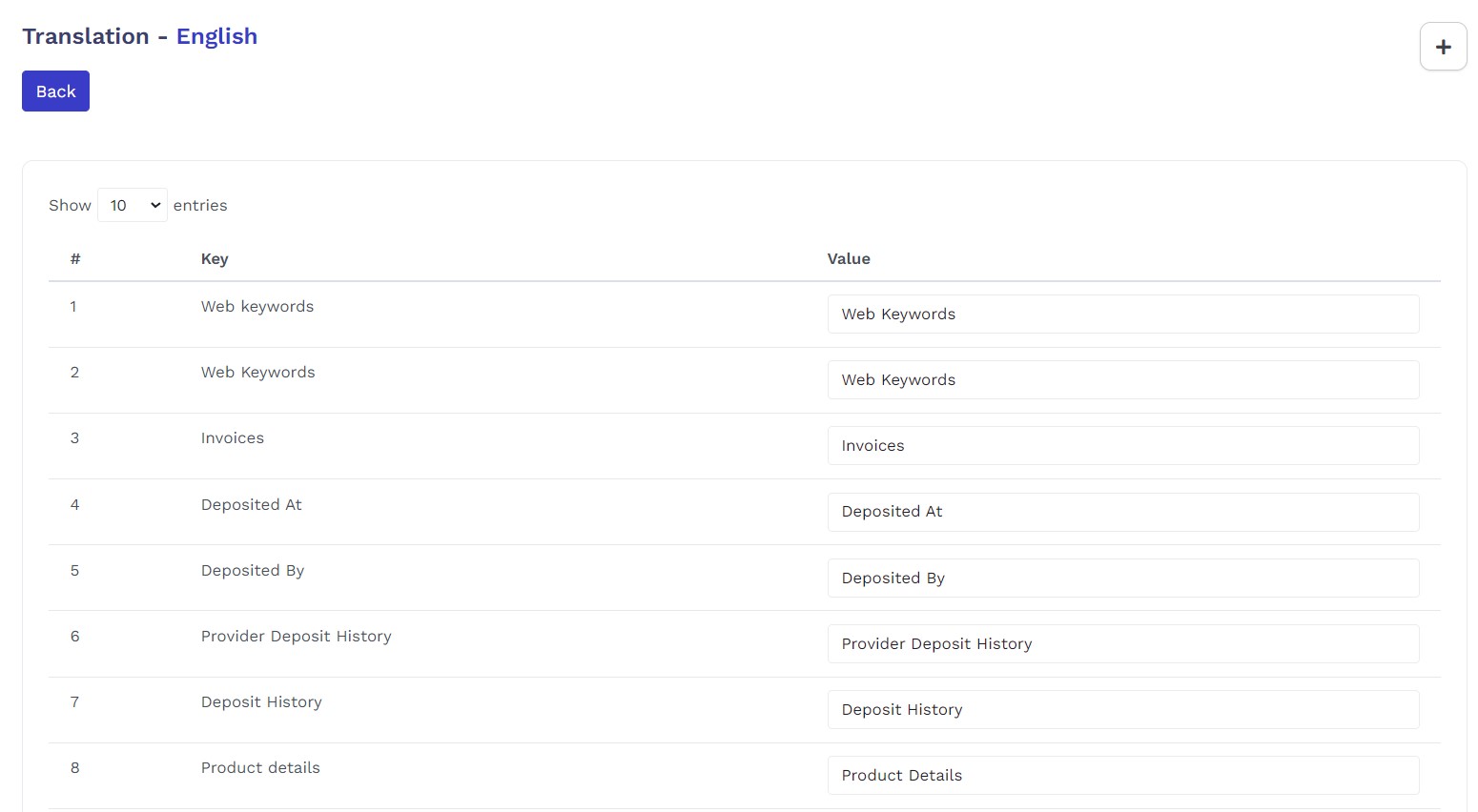
Here we have create new language and if we want to change the default language and Web and Mobile app languages list, add edit and delete the details.

Add Language:

Language Web:
Add Web Keywords:

Country Code
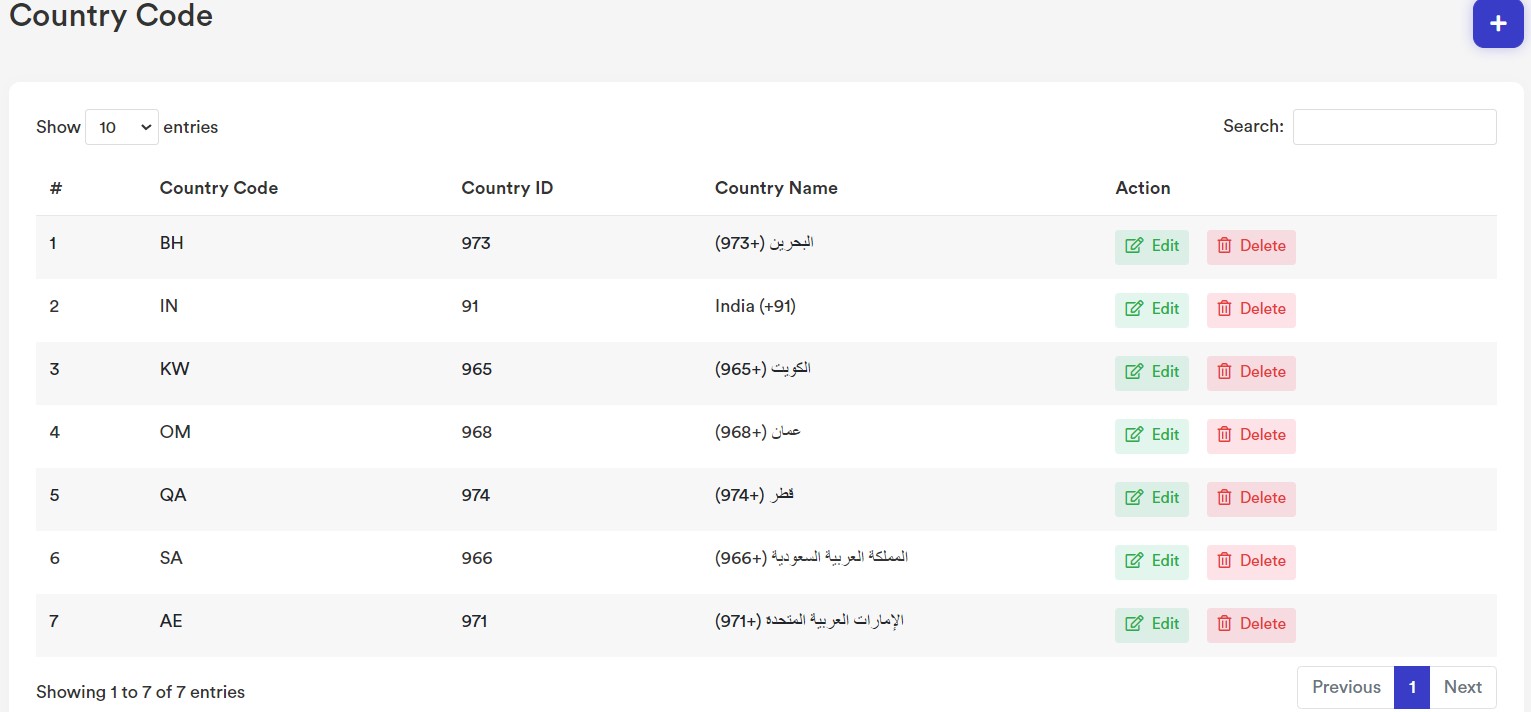
Country Code List
By Using this option admin has to view all the country code list also if you want you can edit/delete the country code
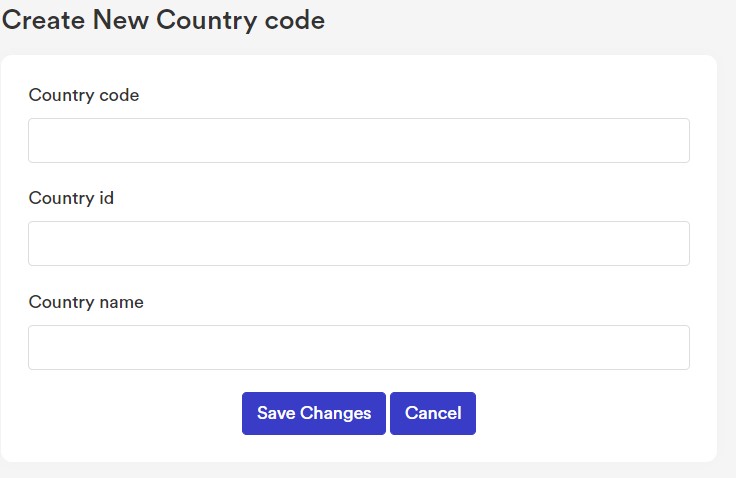
Add Country code:
Here Admin can add the new country code, Click the add button (+) Symbol, you need to enter below details Here i have given for example,
- Country Code: India(IN), United States (US)
- Country ID: India +91, United States +1
- Country Name: You need to enter like this India(+91)
State Code
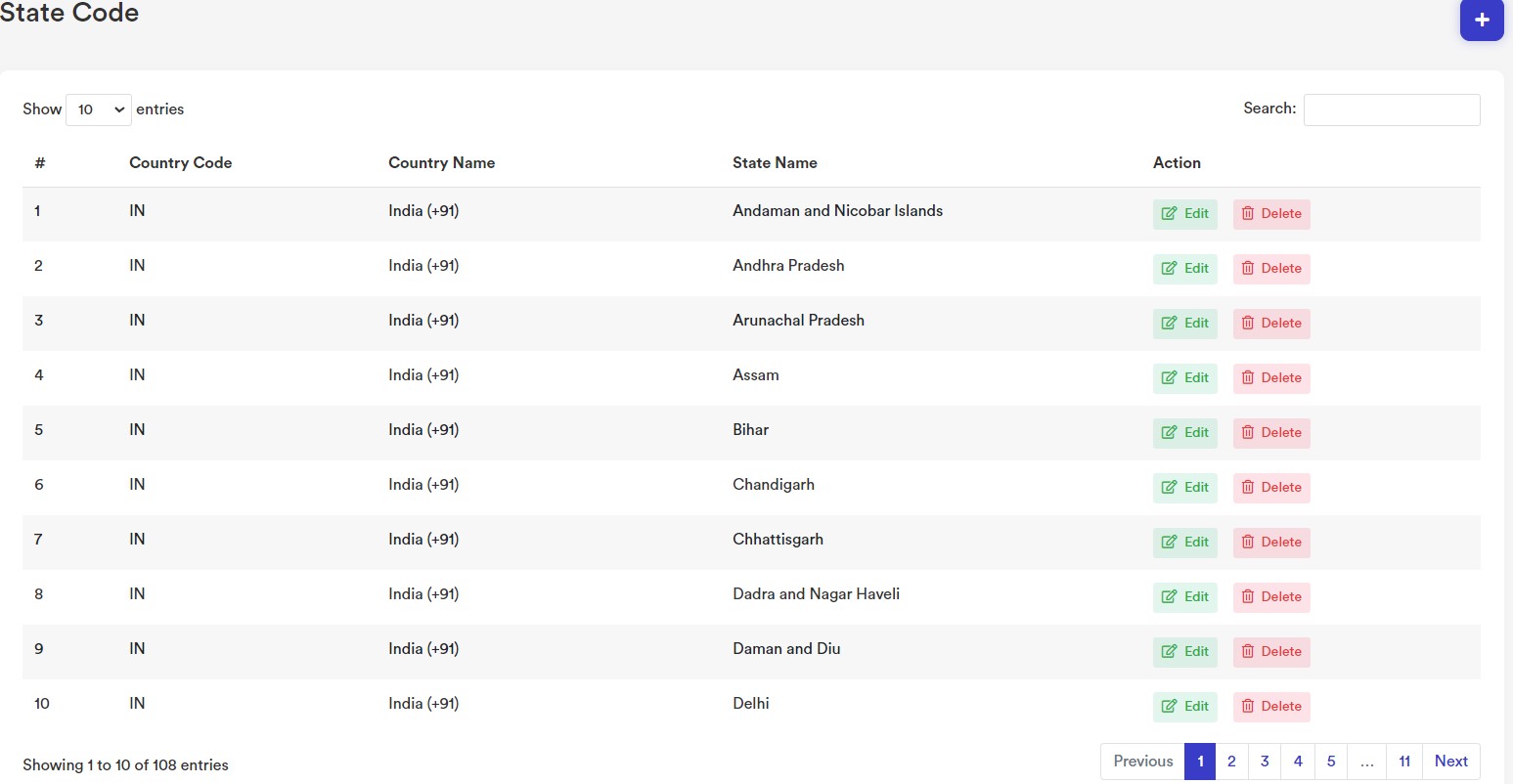
State Code List
By Using this option admin has to view all the State code list also if you want you can edit/delete the State code
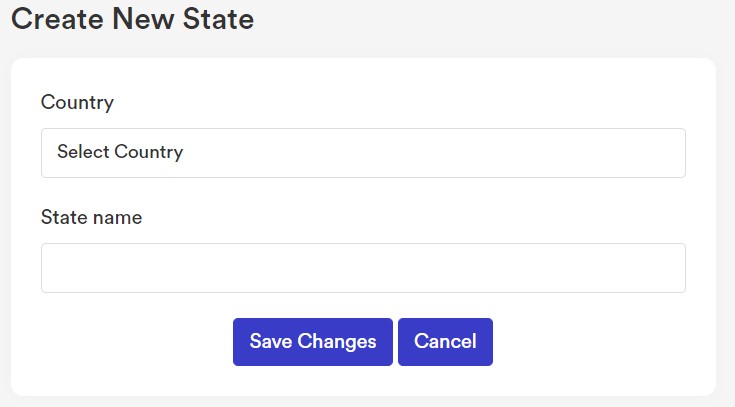
Add State code:
Here Admin can add the new State code, Click the add button (+) Symbol, you need to enter below details Here i have given for example,
- Country: India(+91), United States (+1)
- State Name: You need to enter like this India(+91)
City Code
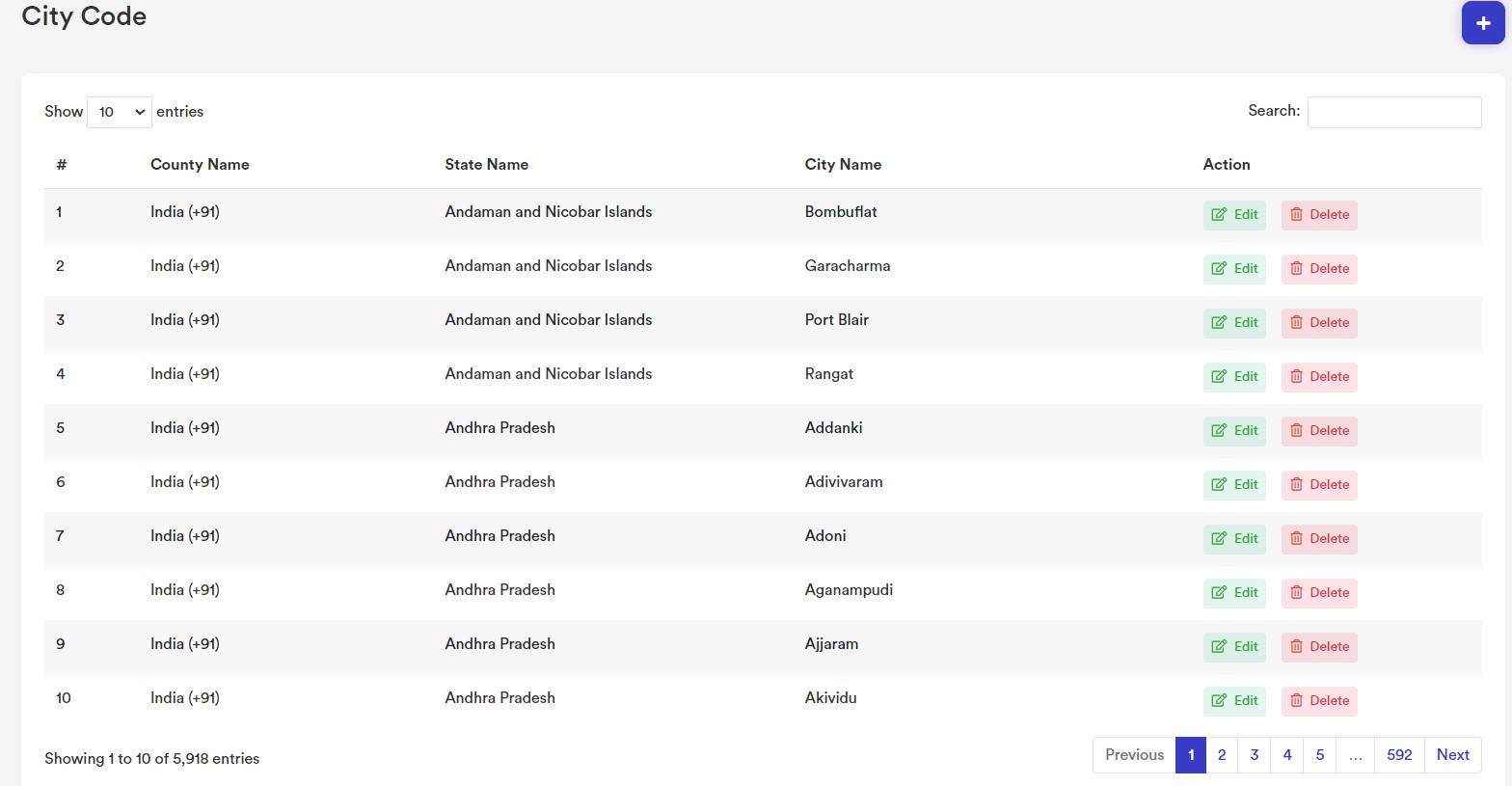
City Code List
By Using this option admin has to view all the City code list also if you want you can edit/delete the City code
Add City code:
Here Admin can add the new City code, Click the add button (+) Symbol, you need to enter below details Here i have given for example,
- State: India
- City Name: Coimbatore

Other Settings
To update the Google analytics key and enable or disable option & Update Cookies content and enable or disable option.

Front-end View:

Chat Settings
To update socket details(Port, IP) and Chat content Details.

Service Charges
To update Service charges Details for Orders.

Admin forget password
Admin and subadmin has option for reset thier password through email link.

Web App Features
Become Professional (Service Provider)
Service Providers can add a wide range of services and delivered by professional experts from nearby locations.
Register With Mobile No
In register page, user should fill all the mandatory details.

Once you have entered the details, You will receive an OTP if user login type is mobile no.

If user login type is Email ID means password popup will be appear.

On Successful registration, It will be go to the Home Page
Post a service
If you post a service, First you have to choose the subscription, without subscription you cannot post any service.

Subscription: As per your needs, you can choose the subscription plans. We have integrated Moyasar payment gateway. By using credit/debit you can pay it. Suppose if your plan is going to expire you will receive an alert.

Availability: And then set your availablity time as per your convenient time.

Add Service
Service Information:
Here you can post your services in detailed information about what you are going to provide service to the customers such as,
- Service Title
- Service Amount
- Service Location
- Category/subcateogry
- Detailed Information
- Add Multiple Images


Service Provider Dashboard
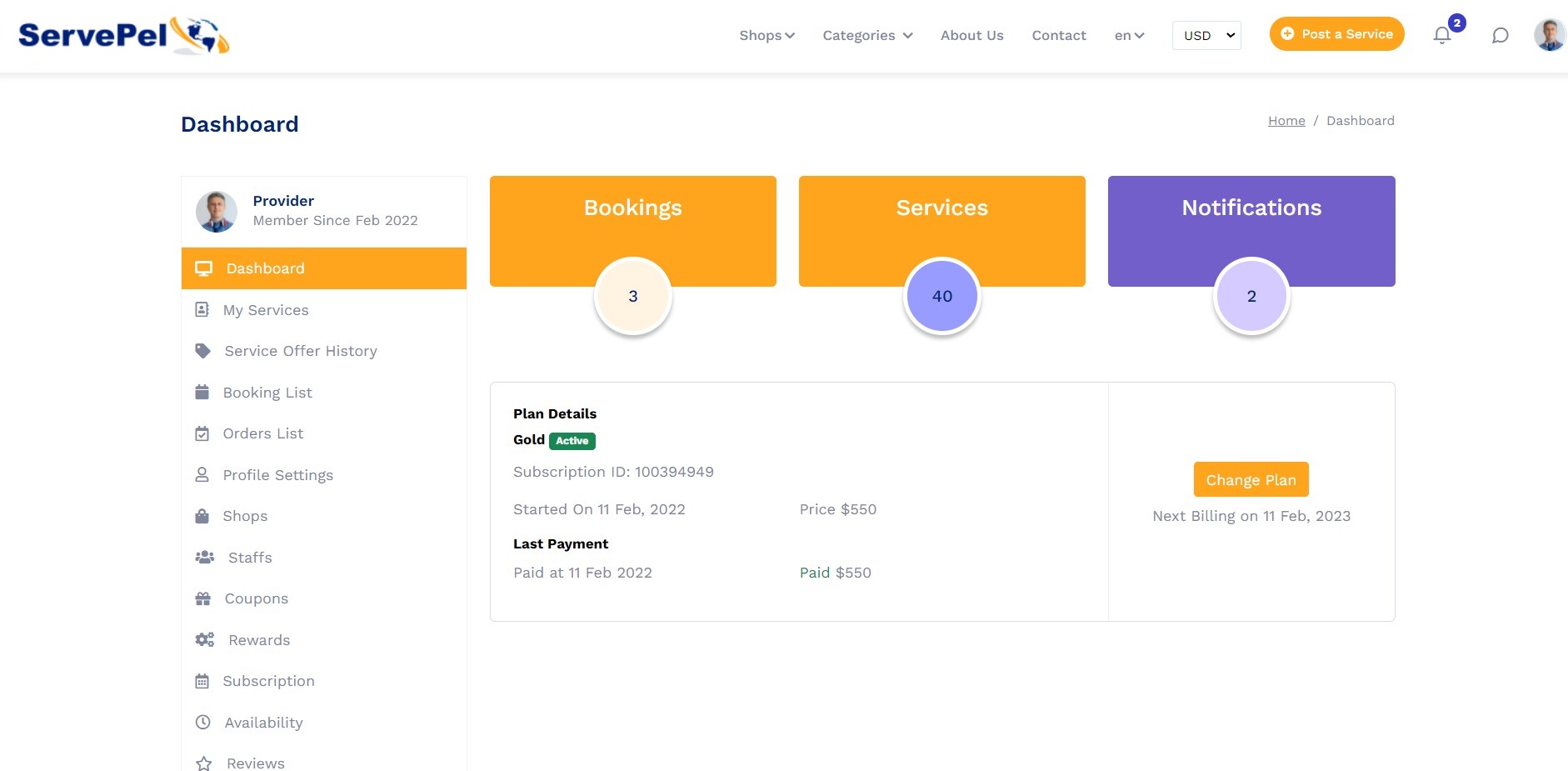
Dashboard:
Enhanced Dashboard for Vendors (Service Provider) to view the business details Bookings, Services, Notifications
Booking List:
In this menu Service provider can view all the booking list

Profile Settings:
Service providers can update the general informations such as Service info, Adderess, Country

My Services:
Service providers can to Edit the services and to switch the services on active&inactive service.

Orders List:
Service providers can View the order status.

My Shops:
Service providers can to Edit the Shops and to switch the Shops on active&inactive service.

My Staffs:
Service providers can to Edit and delete the Shops and also a option for view the staff detials.

Service Coupons:
Service providers can add a new coupon and he view there in coupon history also.In this also used a user also to Redeem their offers.

Coupon History: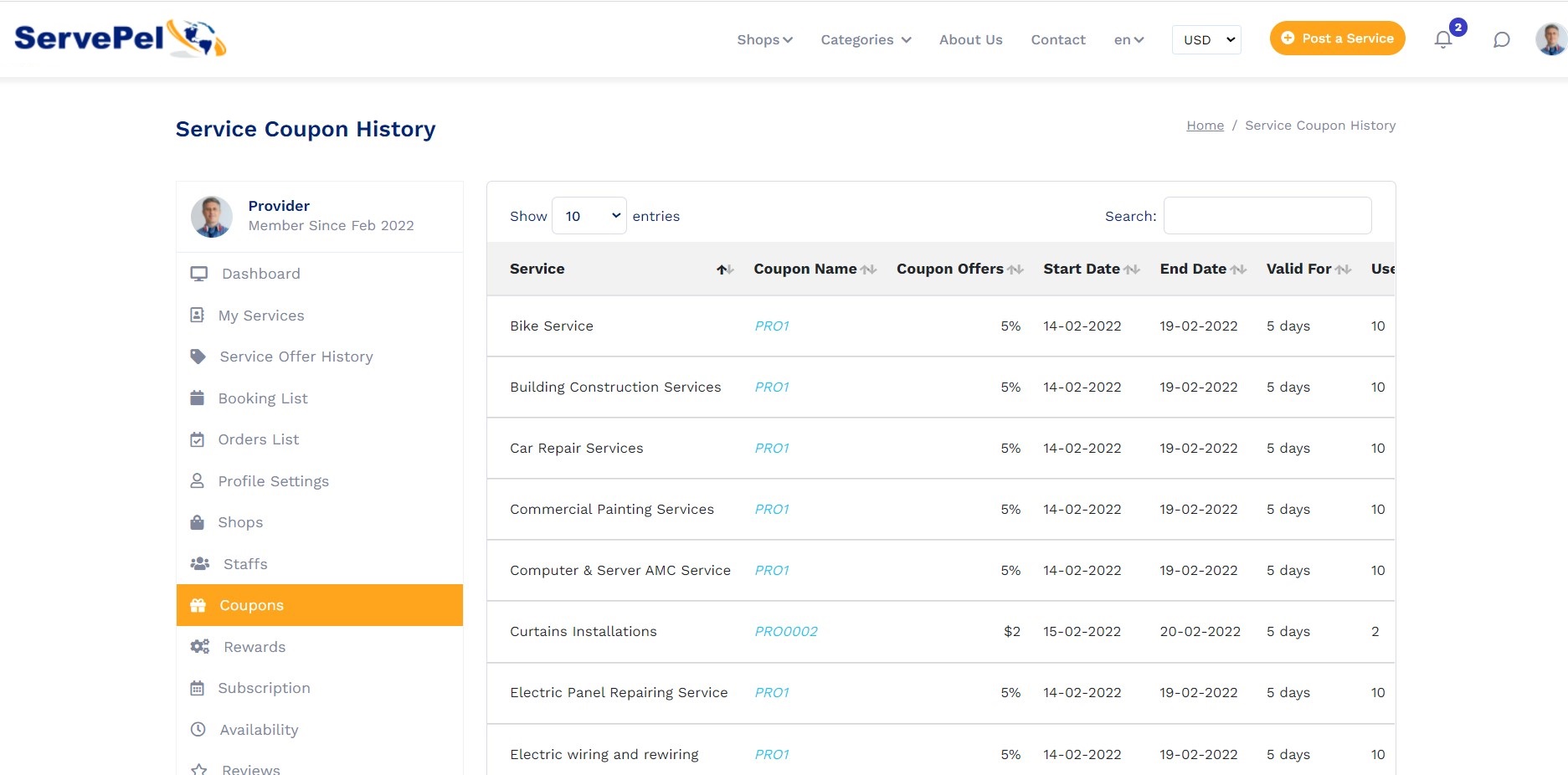
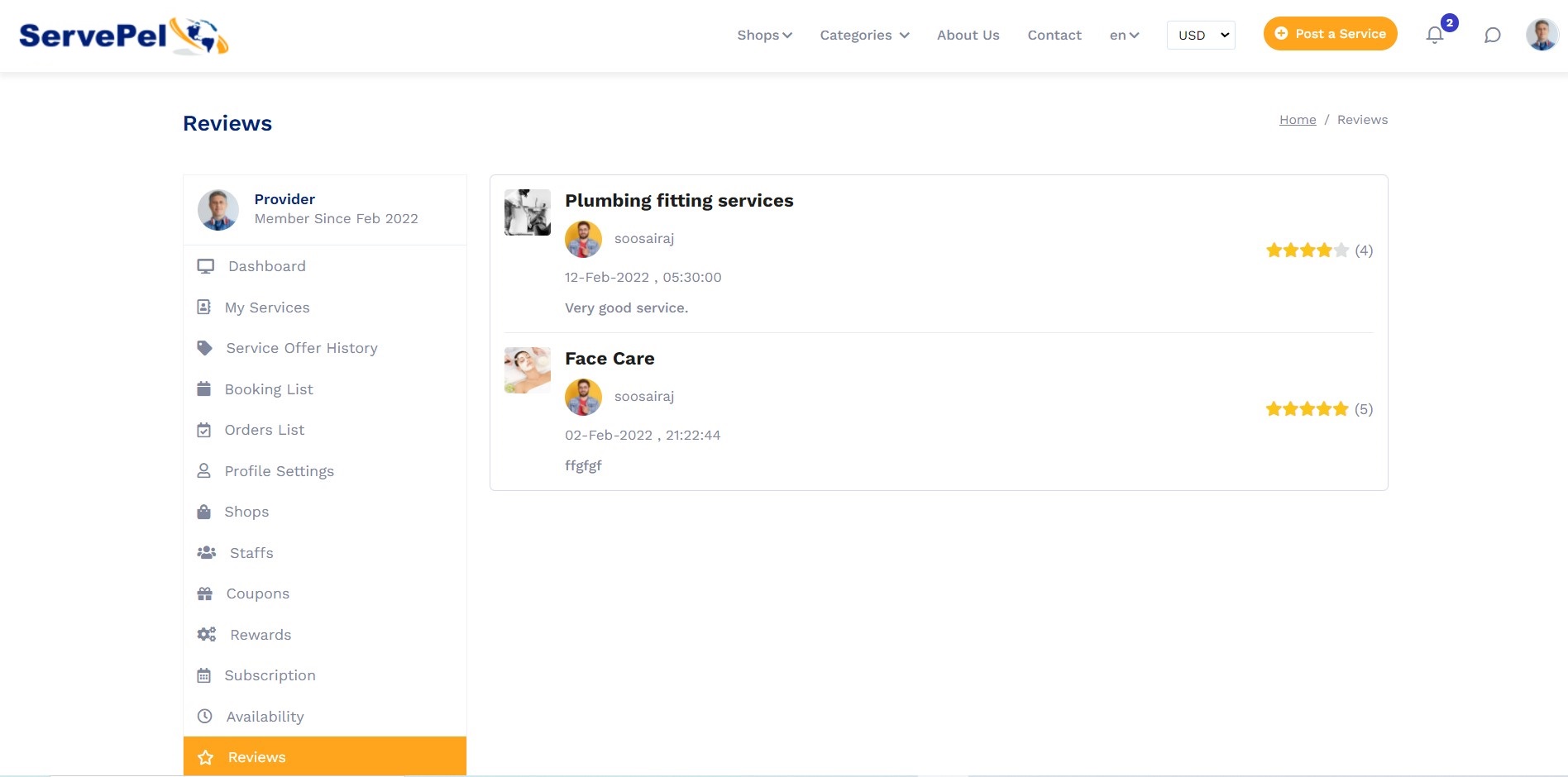
Reviews:
Service providers can view their shops and services reviews.
Payment History:
Service providers can view their payment history on both Services and Products.
Services: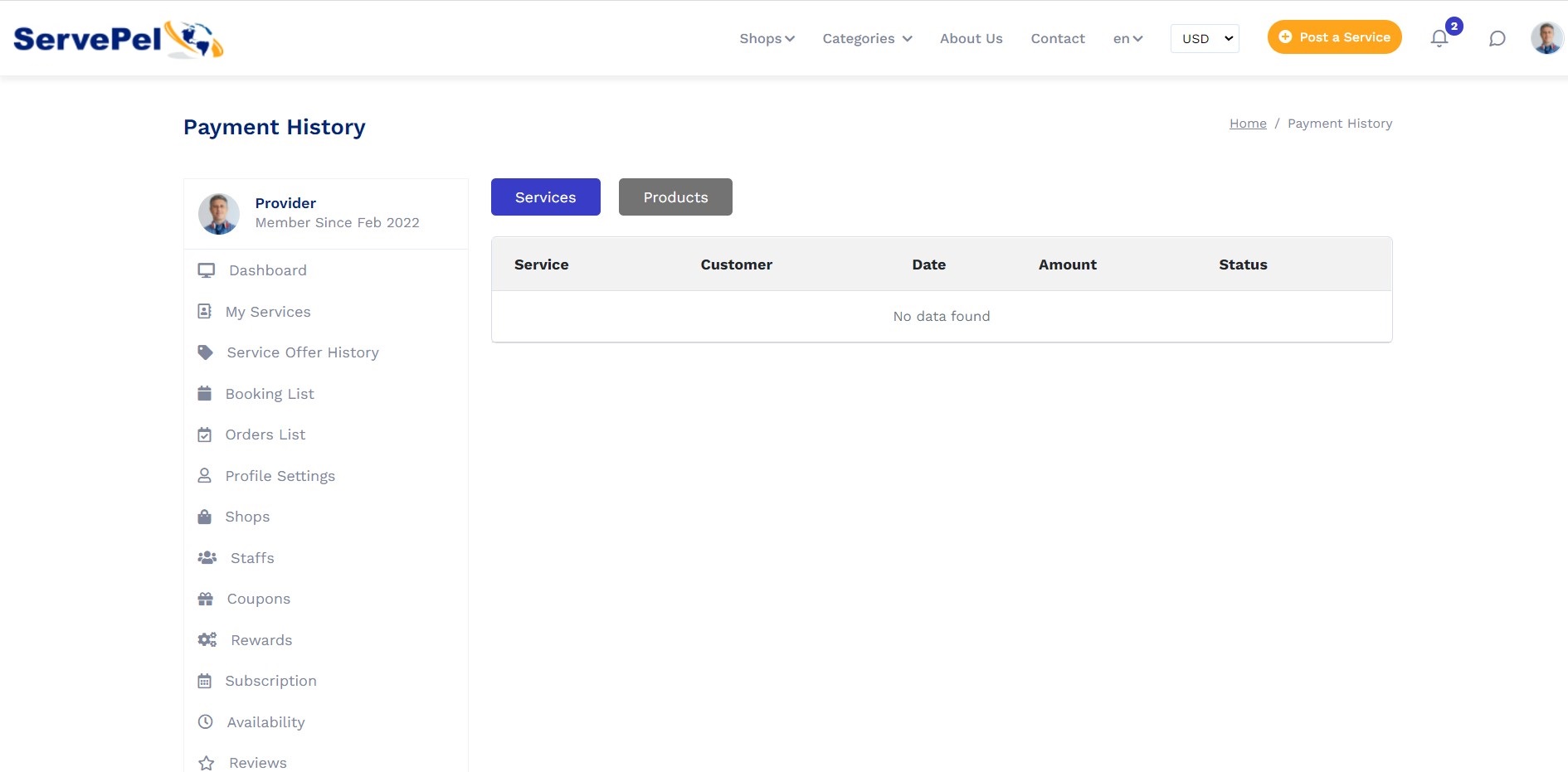
Products:
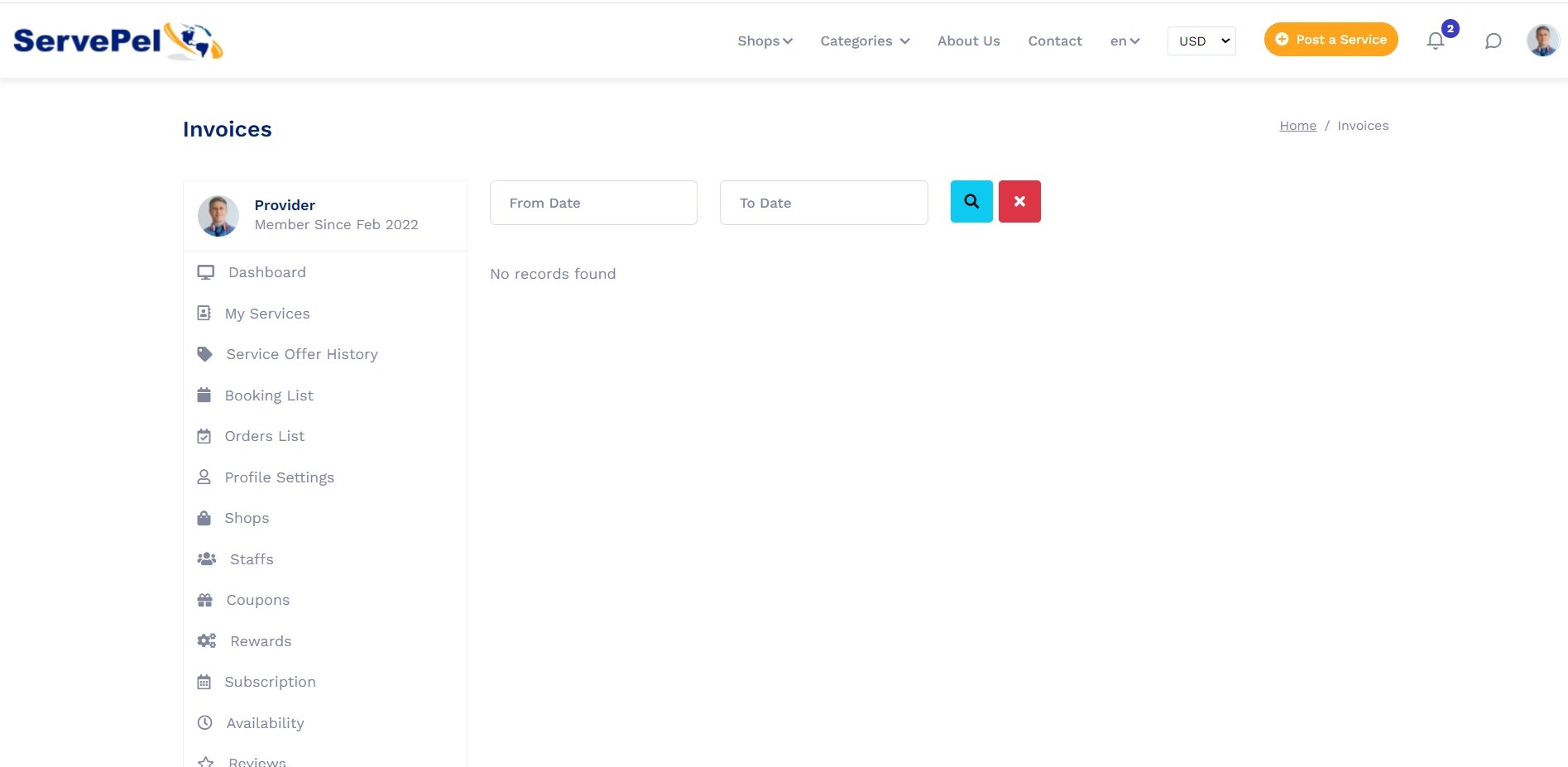
Invoices:
Service providers can their invoices and export the files on your local also.
Notifications
The Service provider can receive the notification regarding the services in alert.

Become User (Customer)
Register
In register page, user should fill all the mandatory details.

Once you have entered the details, You will receive an OTP if user login type is mobile no.

If user login type is Email ID means password popup will be appear.

On Successful registration, It will be go to the Home Page
Book Service
By Using this app, Simply user can book your services nearby locations
Book Nearbyservice: Users can book a widerange of services nearby locations with help of GPS

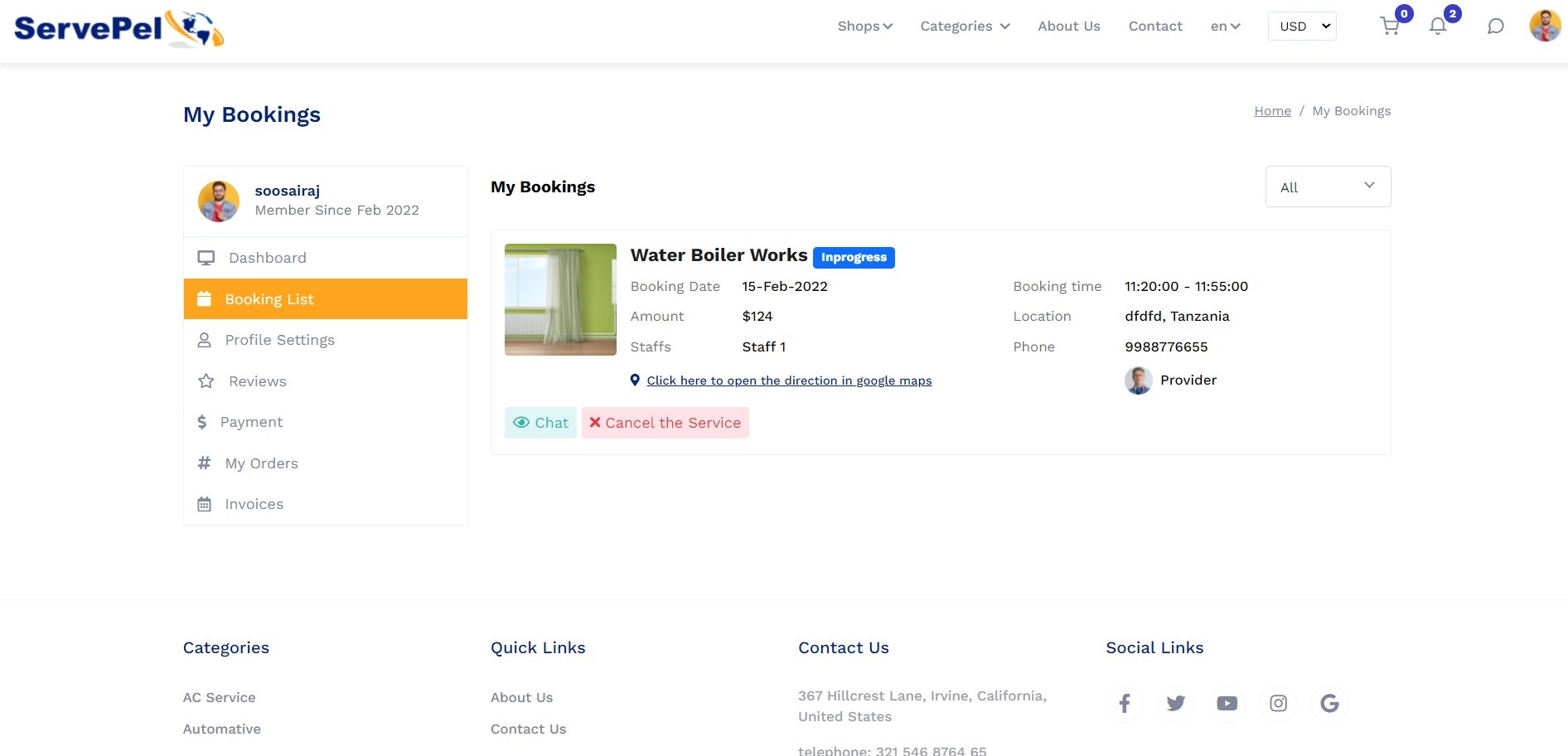
My Bookings: User can see our booking service history,user is booking a service, User need to accept the service,Once service provider completed the job, He has request to the User,If the job is completed user has accepted the service or if user has not satisfied the service user has to reject the service.
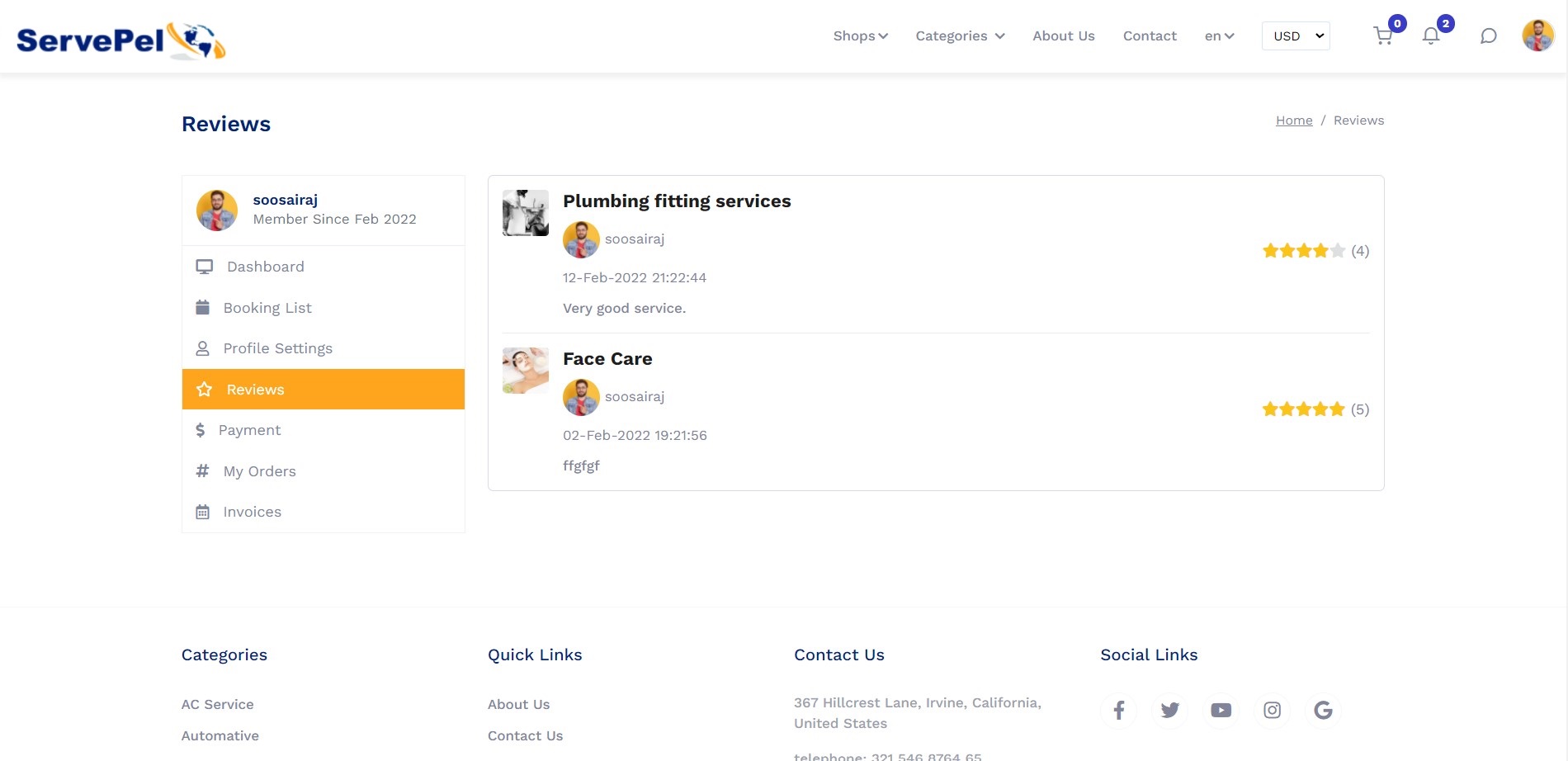
Reviews:
The buyer can leave a feedback about the service provider and also review the feedback.
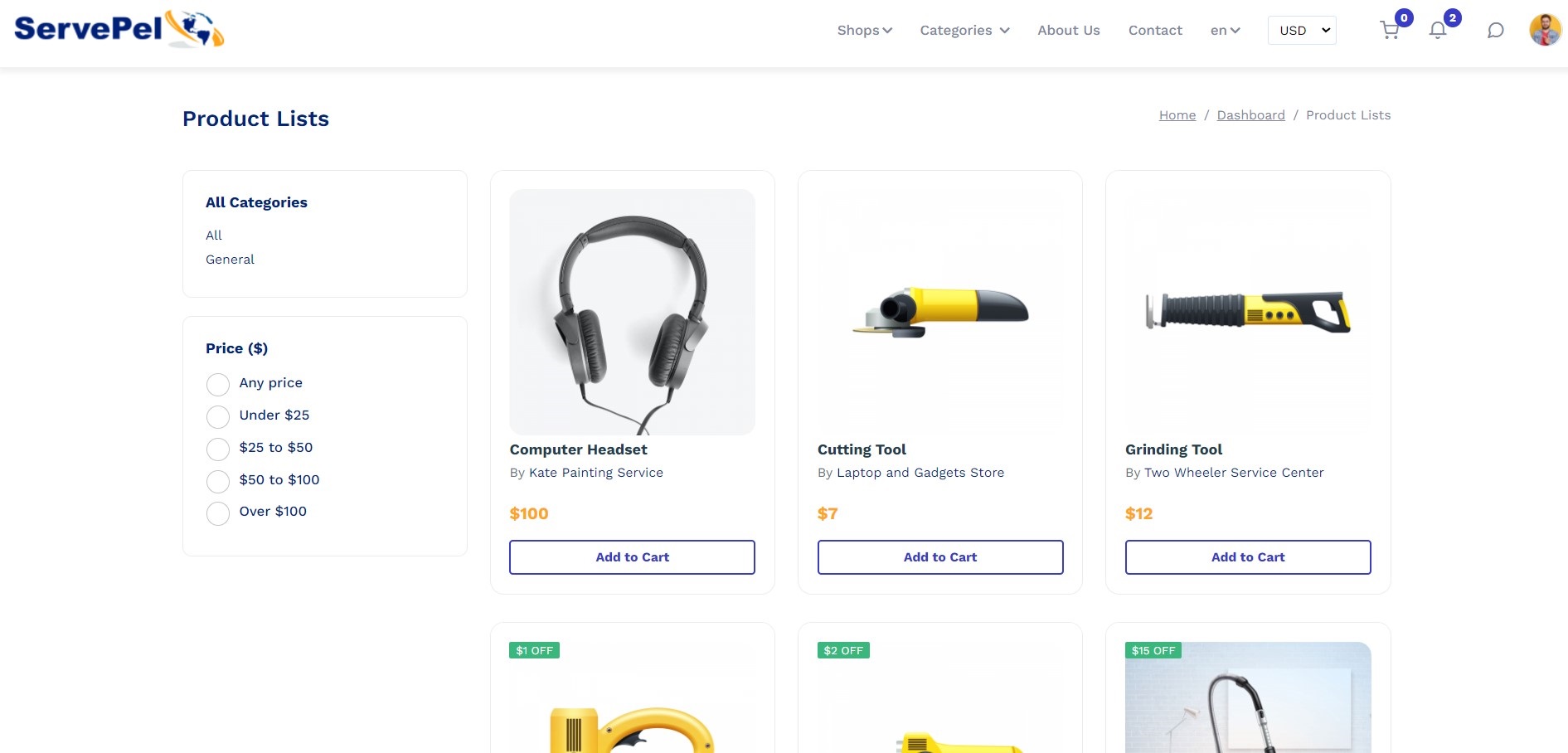
Product Lists Cart
In this site we have a add to cart option.
Chat Option
The chat option is integrated to do message service with service provider

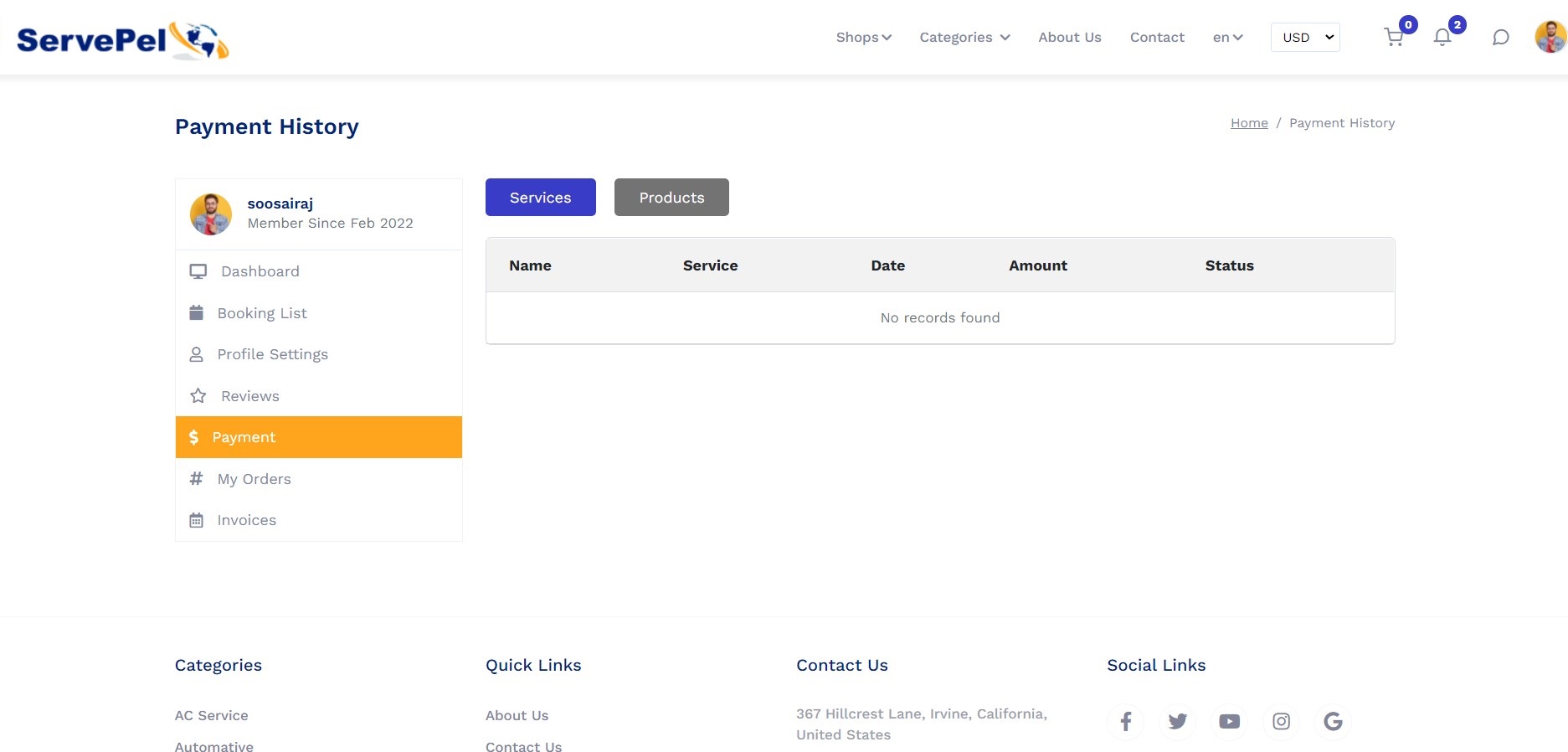
Payment Histroy
Here User can see the payment history
Notifications
The User can receive the notification regarding the services in alert.
Login
Users and Service provider can able to login with registerd mobile number.

Forget Password
Users and Service provider can able to reset their password through forget password option. Reset link will be recive once u click CLICK TO GET LINK option.

Thank you so much for visit this. If you want this platform with your brand name or having questions / doubts then feel free to reach us.
Email: info@whitepel.comWhatsapp : Chat Now
Telegram : Chat Now
Website Form : Contact Now
Live Demo: User / Businesses owner | Admin
Contact us for admin login credentials.
nearbuy business finder app development,nearbuy business finder app development company,nearbuy business finder app development cost,nearbuy business finder source code,nearbuy business finder source code github,service booking app source code,online booking system source code,business directory app template,business directory app script,Business Directory App Development Company,Business Directory App Development Company India,yelp clone app,yelp clone,yelp clone script,yelp clone github,yelp clone wordpress,yelp app clip,yelp clone react,yellowbook clone app,